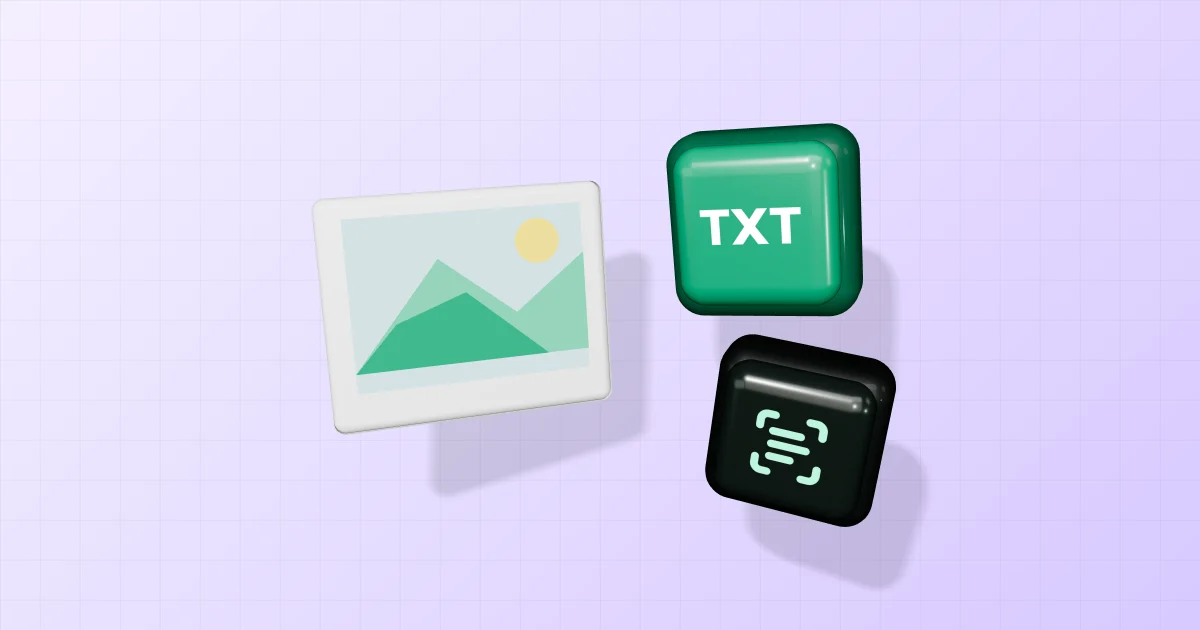
Text inside a screenshot is not always selectable like text in a document. Use image to text when you need to reuse it in a document or message. The result is editable text, not a reconstruction of the original page layout.
Prepare a readable source
Our suggestion is to keep a clear original instead of using a smaller copy passed through several apps. If the screenshot has a large unrelated area, prepare a copy containing the relevant text, leaving a little space around the characters.
Tesseract's documentation identifies skew, noise and overly tight borders as potential recognition problems. Check these before repeating OCR. Increasing pixel dimensions alone is not a guarantee of correct text.
Extract and save the text
- Choose one image or a batch of up to 20 images.
- Select Thai + English for mixed-language content, or English for English-only images.
- Start recognition. The first run may need time to load the engine and language data.
- Review the editable text field and correct words or line breaks.
- Copy the result or download a TXT file.
For multiple images, filenames separate the text sections. Check their reading order before copying everything into another document. This tool does not translate, summarise or certify the content.
Check the details that matter
| Content | Suggested check against the original |
|---|---|
| Names and product names | Spelling and Thai tone marks |
| Codes and numbers | Similar characters such as 0 and O; decimal points |
| Multiple columns | Whether lines appear in the intended order |
| Price tables | Whether each number remains associated with the correct item |
Tesseract documents limitations with table recognition. Do not assume plain text has preserved a table's row and column relationships. Keep the source image until you finish reviewing important content.
If the source is a PDF
This image tool is for extracting text from image files. If you want a scanned PDF with searchable, selectable text, see Thai PDF OCR. That produces a different kind of result from copying text out of a screenshot.
Recognition runs in your browser without uploading the image to a server. Use Clear all when finished, especially on a shared computer. Open the downloaded TXT to confirm it contains your corrected text before closing the page.